8 GB or 16 GB laptop RAM: the Task Manager peak that decides
Measure your own memory peak in Task Manager, then choose 8 GB, 16 GB or 32 GB from what your laptop actually uses. No guessing, no wasted money.
Some links in this guide are affiliate links: if you buy, TechForLive may earn a commission at no extra cost to you. Details.
- Watch the highest Committed figure in Task Manager during your heaviest session.
- A peak under 8 GB means 8 GB is enough; a peak over 8 GB means buy 16 GB.
- Check whether the RAM is soldered before you buy, because that choice is final.
- 32 GB only pays off when software requirements or your own peak demand it.
- Two matched modules use both memory channels; one module uses a single channel.
What RAM does in a laptop
RAM is short-term working memory. It holds the apps, tabs and files you have open right now, so the processor can reach them in an instant.
When RAM fills up, Windows moves idle data to the page file on your storage drive. Storage reads far slower than RAM reads, so pulling that data back takes longer and the laptop can stutter when you switch apps. Free memory is fast memory.
Capacity and speed answer different questions. Capacity sets how much work fits in memory at once, while speed sets how fast data moves between RAM and the processor.
Storage and RAM solve different problems. Storage keeps your files when the laptop is off, and RAM holds only what is running now. Adding RAM will not free disk space, and a bigger drive will not stop paging. Think of RAM as desk space. A bigger desk holds more papers at once, and you can reach any of them without standing up. A small desk forces you to file papers away and fetch them back, which takes time. RAM works the same way for your laptop.
- Capacity: how much work stays in memory at once
- Speed: how fast data moves to the processor
- Storage: where files live when the laptop is off
- Page file: where Windows parks idle data when RAM fills up
| At a glance | Answer |
|---|---|
| Windows 11 minimum | 4 GB RAM |
| Light use | 8 GB is enough |
| Most people | 16 GB |
| Demanding games | 16 GB baseline; 32 GB heavy titles |
| Mac signal | Memory Pressure colour |
| Upgrade check | Soldered or slotted |
How much RAM do I need for a laptop?
Start with the floor, then check it against your own use. Microsoft lists 4 GB as the minimum for Windows 11, and that floor leaves almost no room for real work. The rest of this guide shows how to measure your own peak, then match the capacity to it.
For light use, 8 GB still holds. That means browsing with a few tabs, email, documents and video playback, with nothing heavy running beside them. If that is your whole workload, the extra capacity buys nothing you can feel.
Busy days call for 16 GB. Published requirements back that up. Cyberpunk 2077 lists 12 GB as its minimum and 16 GB as recommended. Microsoft Flight Simulator (2020) lists 16 GB as recommended and 32 GB as ideal. Video calls, large spreadsheets and a browser full of tabs all push memory use up at the same time.
The belief that more RAM always makes a laptop faster is wrong. Extra capacity only helps when your workload actually uses it. A laptop with plenty of free memory gains nothing from a bigger number.
32 GB earns its place only when a program demands it or your own peak reading says so. Check the software's published system requirements first, then measure. Guessing at future needs wastes money that a faster drive or a better screen would use well.
Measure memory pressure in Windows Task Manager
Task Manager shows what your laptop actually uses, so you can stop guessing. Open it with Ctrl + Shift + Esc, then select Performance and Memory. Watch the panel during a normal heavy session, with your usual apps, tabs and call settings open.
In use shows physical RAM in active use right now. Available shows memory ready for immediate use without the page file. Cached holds recently used data that Windows can hand back fast. Committed shows memory promised to programs and the system, and its highest reading during your session is the number that decides. On a laptop with shared graphics memory, the graphics chip borrows part of system RAM. In use then runs higher than on a machine with its own graphics memory. Judge those machines by Available memory and responsiveness, not by one raw figure.
A peak under 8 GB means 8 GB covers you. Between 8 GB and 16 GB, buy 16 GB. Above 16 GB, consider 32 GB, but only if the laptop felt slow as well.
Repeat the check on another day before you decide. One session can mislead you, because a single large file or an unusual call can push the peak up. Two or three sessions show the pattern your laptop really lives with.
- Open Task Manager with Ctrl + Shift + Esc, then select Performance > Memory.
- Open your usual apps, tabs and call settings, exactly as you work.
- Work normally for an hour or two and watch the Committed figure.
- Note the highest Committed reading you see during the session.
- Repeat the test on another day and compare the peaks.
On a Mac, read Memory Pressure instead
Open Activity Monitor and click the Memory tab. The Memory Pressure graph at the bottom is the number to watch. Apple says green means the Mac is using its RAM efficiently. Yellow means it might eventually need more RAM, and red means it needs more RAM.
Watch the graph across a normal working day, and check the Swap used figure beside it. A little swap during a heavy task is normal. Heavy swap use beside repeated slowdowns is the stronger warning, and that combination points to more RAM at your next purchase.
Watch for the signs that your laptop needs more RAM
Low Available memory shows shrinking headroom, above all when it stays low across repeated tasks. A brief dip means little, because Windows can reclaim cached data in a moment. Watch for a pattern, not a single reading.
Hard faults count requests for memory that the system could not serve from RAM. A few happen during normal work. Frequent hard faults during your heaviest tasks point to real pressure, and you can watch them in Resource Monitor or Performance Monitor.
Sustained disk activity beside high memory pressure is another warning. The system may be reading page-file data back into RAM. You may feel it as a delay when you switch apps or open a large file.
Published requirements give you a second check. Look up the system requirements for each demanding game or app you run, and compare them with your own peak. A game that lists 16 GB as its recommended memory is telling you its makers expect that much room. Treat that figure as the floor for that game, then measure the game itself with your own settings.
Tab counts give little guidance on their own. Extensions, background tabs, video sites and call windows all change what a browser uses. Your measured peak matters more than any generic count of tabs.
- Available memory: low across repeated tasks
- Hard faults: frequent during heavy work
- Disk activity: sustained beside slow app switching
- Responsiveness: delays when switching apps
Check whether the laptop RAM can be upgraded
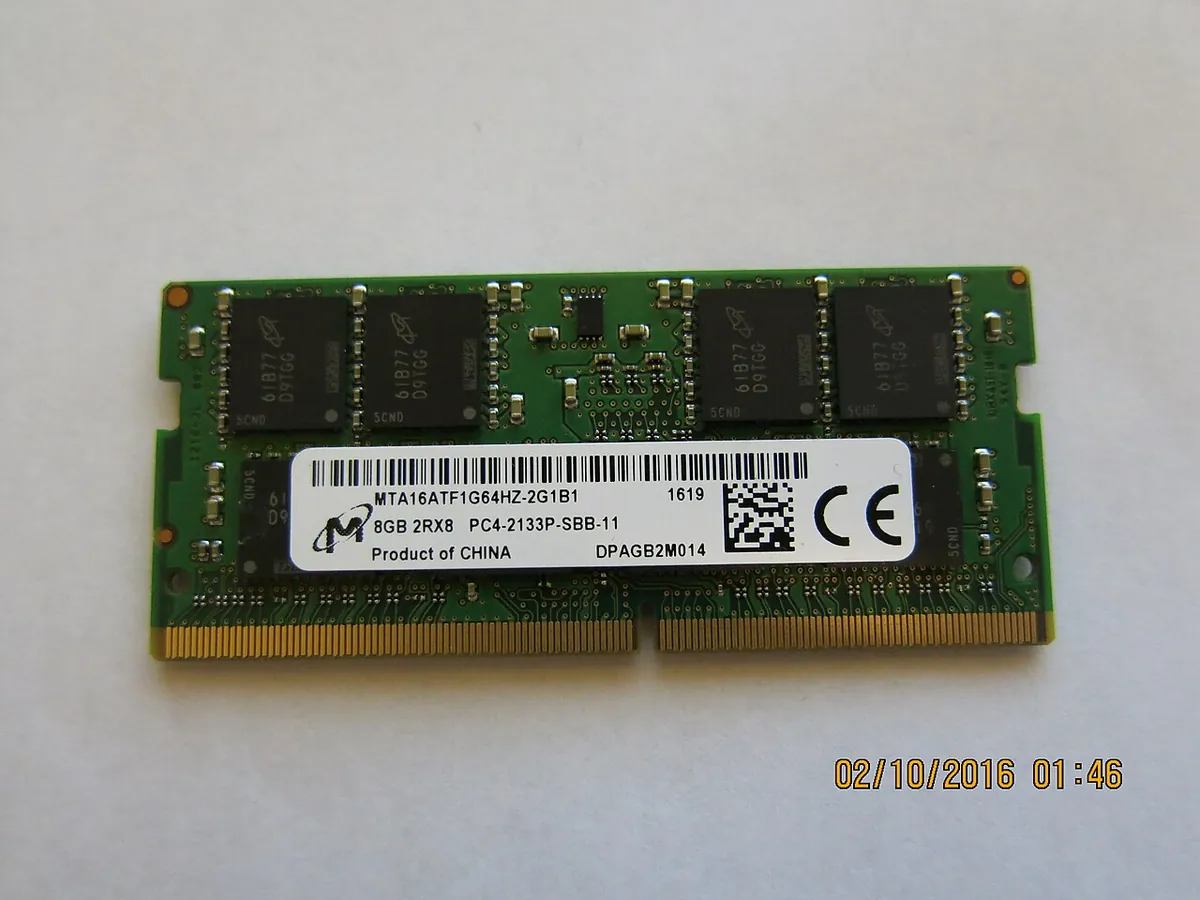
Soldered memory sits on the motherboard and usually cannot be replaced. Some thin laptops solder one module and leave one slot free, while others fix both modules in place. Check before you buy, because a soldered laptop gives you one chance to choose.
Find the exact model number on the maker's support page, then look for the memory specifications and the service manual. The manual lists the maximum supported capacity and whether it shows an accessible memory slot. A removable bottom panel alone proves nothing.
Two matched modules let the memory controller use both channels at once. Two 64-bit channels give 128-bit wide access, so dual-channel memory can move twice as much data per transfer as a single channel. One module uses a single channel, so check the manual for the slot layout the maker recommends.
Speed matters after capacity is covered. Buying a faster stick will not fix a laptop that pages to storage, because paging is the bottleneck. Match the module type and speed the manual lists, then spend the rest of your budget on capacity.
If the memory is replaceable, your choice gains room to change. You can start with enough capacity for today and add more later, provided the laptop supports the larger module. If it is soldered, buy the headroom now or live without it.
Choose the smallest capacity that handles your workload
Buy 8 GB when your needs are modest and your test leaves plenty of Available memory. You should see no frequent hard faults and no sustained paging during normal tasks. That is the whole test, and it is enough. Put the money you save toward a faster drive or a brighter screen.
Choose 16 GB when you run several demanding apps, edit large files, join video calls, or play games with published requirements above 8 GB. This option gives useful headroom without leaning on the page file. For most buyers, this is where the decision lands.
Reserve 32 GB for work that truly needs it. That means an app that requires it, a workload that cannot fit comfortably in 16 GB, or specialized work that needs more room. Let the requirement or the peak decide, not the spec sheet.
Skip the bigger capacity unless a requirement or a peak reading points to it. If you know you will run a demanding app, check its current requirements and test that workload now. A measured need beats a guessed one every time. Buying your first laptop leaves you nothing to measure. Start from the work you know you will do. Light browsing and documents point to 8 GB, while busy multitasking, video calls and games point to 16 GB.
| What you observe | Practical choice |
|---|---|
| Light work with healthy Available memory | 8 GB may be enough |
| Heavy multitasking, large apps, or demanding games | 16 GB is the safer choice |
| Software requirements exceed 16 GB or measured work does not fit | Consider 32 GB |
Quick answers
Is 8 GB RAM enough for a laptop?
Yes, for light browsing, email, documents and modest multitasking. Confirm that Available memory stays healthy and that hard faults or disk activity do not accompany delays.
Is 16 GB RAM enough for gaming?
Often, but check each game's published requirements and measure the game with your settings. As a guide, Cyberpunk 2077 recommends 16 GB, while Microsoft Flight Simulator's ideal tier asks for 32 GB.
Does Committed mean my laptop is low on RAM?
A single Committed reading does not decide it. Committed tracks memory promised to programs and the system, so one quiet moment tells you nothing. The decision comes from the highest Committed figure across your heaviest sessions, read beside Available memory and hard faults.
Should I buy 32 GB for future-proofing?
Buy 32 GB when current software requirements demand it, your measured workload needs it, or specialized work requires headroom. Extra capacity adds little when Available memory stays ample.
How do I check if a laptop has upgradeable RAM?
Start from the model number printed on the laptop's base or in Settings, then search the maker's site for that model. The support page states whether the memory is soldered or slotted, and the manual lists the maximum capacity.