Why Your Laptop Fan Keeps Running and How to Quiet It
A laptop fan that never stops usually means heat or a busy app. Find the cause in Task Manager or Activity Monitor, then quiet it down.
Some links in this guide are affiliate links: if you buy, TechForLive may earn a commission at no extra cost to you. Details.
- Open Task Manager or Activity Monitor first. The app at the top of the list is usually the cause.
- Clean the vents with short bursts of compressed air, with the laptop shut down and unplugged.
- Switch the power mode to Balanced on Windows or Low Power Mode on a Mac.
- A grinding or rattling fan is a hardware fault. Take it to a repair shop.
Why does my laptop fan keep running
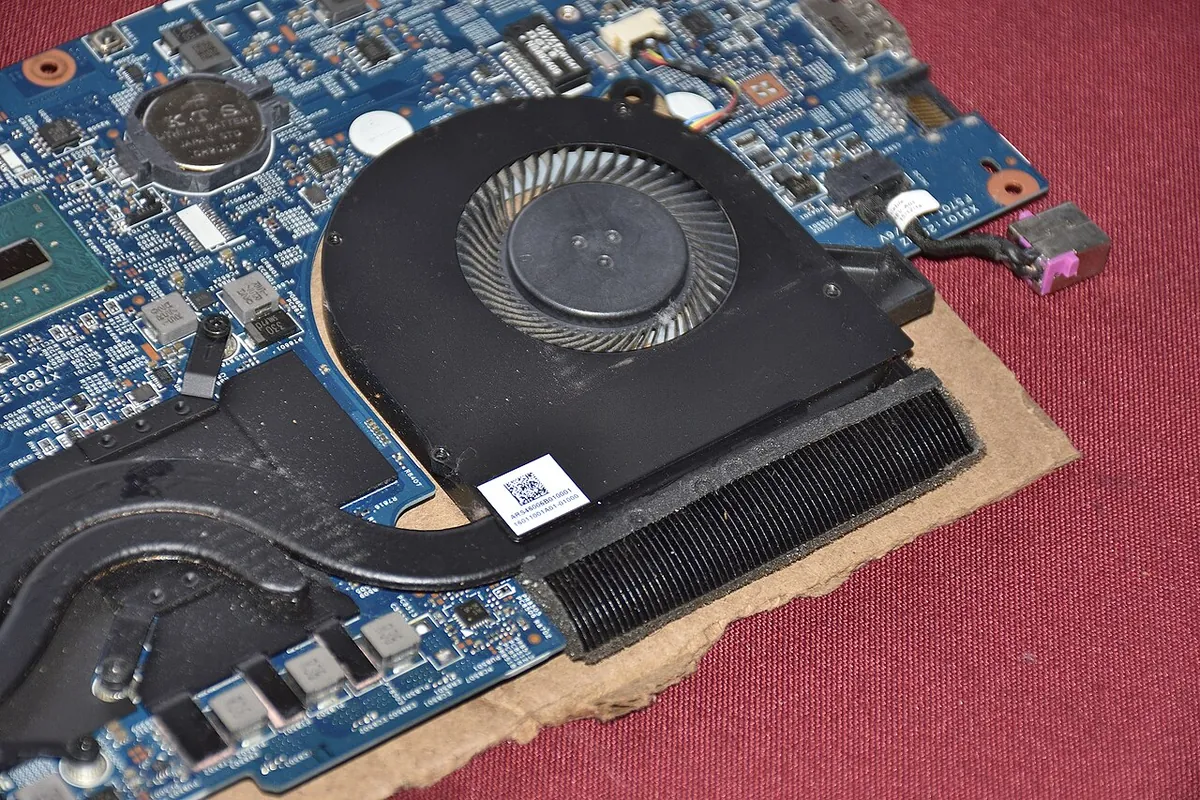
A laptop fan has one job: move hot air out of the case. The processor, the chip that runs everything, makes heat as it works. The harder it works, the more heat it makes. Small sensors watch the temperature and tell the fan to spin faster as the heat rises. When the heat falls, the fan slows down.
A fan that keeps running is telling you the heat is not falling. Something is keeping the processor busy, or the heat cannot escape the case. The fan itself is rarely the fault. It will keep going until the temperature drops.
Some fan noise is normal. A short burst during a video call or a game is the cooling system working as planned. The problem starts when the fan runs hard while you do almost nothing. That pattern points to a cause you can usually find in minutes.
Work through the checks in order, from the quickest to the most hands-on. Start by finding what is using the processor. Then clear the vents, then check the power setting. Most noisy fans quiet down after one of those steps.
| At a glance | Answer |
|---|---|
| First check | Task Manager or Activity Monitor |
| Windows shortcut | Ctrl + Shift + Esc |
| Mac tool | Activity Monitor, in Utilities |
| Power mode | Balanced, not Best performance |
| Cleaning tool | Compressed air, short bursts |
| Room range | 10 to 35 degrees Celsius |
Find the app that is keeping your processor busy
The first check takes two minutes. Open Task Manager on Windows, or Activity Monitor on a Mac. Both list every program running on your machine, with a number showing how much of the processor each one uses. The program at the top is usually the reason your fan is running.
On Windows, press Ctrl + Shift + Esc together. Task Manager opens. If it shows only a short list of apps, click More details at the bottom to see the full window. Click the Processes tab, then click the CPU column heading. The list sorts itself, with the hungriest programs at the top.
Watch the top of the list for a minute. Processor use jumps up and down, so look for a program that stays high, above 30 percent, while you do nothing. If it is an app you know and do not need right now, click it and choose End task. The fan often quiets down within a minute.
On a Mac, open Finder, then Applications, then Utilities, then Activity Monitor. Click the CPU tab at the top, then click the % CPU column so the busiest processes sit at the top. The same rule applies: a program that stays high while you do nothing is the likely cause. Quit it from the app itself, or select it and click the stop button at the top.
- Open Task Manager with Ctrl + Shift + Esc, or Activity Monitor from Finder, Applications, Utilities.
- Sort by CPU use, with the highest numbers at the top of the list.
- Watch for a minute and note any program that stays above 30 percent while you do nothing.
- Close the app if you know it and do not need it. If you do not know it, search its name first.
- Give the fan a minute to slow down, then check the list again.
| Reading | What it means | What to do |
|---|---|---|
| One app above 30 percent | That app is working hard right now | Close it if you do not need it |
| Many small apps, none high | The load is spread out | Close the ones you are not using |
| A system process stays high | Windows or macOS is doing a job | Wait, then restart if it lasts hours |
| Nothing looks high | The cause is heat, not load | Clean the vents and check the surface |
Clear the dust and give the vents room to breathe
Dust is the slow cause. The fan pulls room air through the vents. Dust in that air settles on the fan blades and on the thin metal fins inside. The layer builds up like a filter, and less air gets through. The processor runs hotter, the fan spins faster, and the noise grows.
Start outside the case. Shut the laptop down fully, not sleep, and unplug the power cable first. Find the vents, usually along the sides and underneath. Hold a can of compressed air upright, six inches or so from a vent, and spray in short bursts. Work through every vent, then wipe the dust around them with a dry cloth.
Do not use a vacuum cleaner on the vents. A vacuum can build up static, which risks damaging the parts inside. A can of compressed air is the safer tool. Do not blow with your mouth either, since breath carries moisture. If the fan still races after an outside clean, the dust may be packed inside. Check your maker's manual before you open the case, and take it to a repair shop if you are unsure.
Where the laptop sits matters too. A bed or a cushion blocks the vents underneath, so use a hard, flat surface such as a desk. A hot room adds to the load as well, since Apple lists 10 to 35 degrees Celsius as the range its laptops are built for.
- Shut the laptop down fully and unplug the power cable.
- Find the vents along the sides and underneath the case.
- Hold the can of compressed air upright and spray in short bursts.
- Work through every vent, then wipe the loose dust away with a dry cloth.
- Plug in, start up, and listen. The fan should settle within a few minutes.
Turn down the power setting that pushes the fan
Some laptops are set to run at full speed all day. Windows calls this a power mode, and the fastest one keeps the processor ready for heavy work even when you only read email. That readiness makes heat, and heat makes fan noise. Changing the mode costs nothing and takes seconds.
On Windows 11, open Settings, then System, then Power and battery. Find Power mode and choose Balanced, or Best power efficiency if your laptop offers it. On most laptops the Balanced mode caps how hard the processor may run, which cuts heat. On some models it makes little difference. Save Best performance for games or video work.
On a Mac, the matching switch is Low Power Mode. Open System Settings, then Battery, and turn Low Power Mode on. It trims background work and slows the processor a little, which cuts the heat the fan has to clear. Turn it off when you need full speed again. Try it for an afternoon and see if the fan settles.
A laptop plugged in often runs hotter than one on battery. Some makers let the processor work harder on mains power. If the fan only races while charging, try the Balanced mode while plugged in. Close any game or video app running in the background when you are done.
Stop the fan coming back
Start with updates. A Windows update that is downloading or stuck can keep the processor busy for hours, and the fan runs with it. Open Settings, then Windows Update, and choose Check for updates. Install what is waiting, then restart when asked. On a Mac, open System Settings, then General, then Software Update, and install what is there.
Then look at startup apps. These are programs that launch every time the laptop starts, and some of them keep working in the background all day. On Windows, open Task Manager, choose the Startup apps tab, and look for apps you do not need at startup. Select one and choose Disable. It will still open when you click it, just not on its own. On a Mac, open System Settings, then General, then Login Items, and remove what you do not need.
Malware is the last check, and it matters. A harmful program can run hidden jobs that pin the processor at full speed, which keeps the fan going nonstop. On Windows, open Start, then Settings, then Privacy and security, then Windows Security, then Virus and threat protection, and choose Quick scan. If the scan finds nothing and the fan still runs, the cause is more likely dust. A worn fan is the other suspect, and a repair shop is the next step.
Myths about laptop fans you can ignore
A loud fan does not mean the laptop is about to break. A fan spins up long before anything is in danger, and a laptop shuts itself down if the heat ever gets that far. Noise on its own is not damage. The question is always what is making the heat.
Closing the lid does not always stop the fan. Some laptops keep working with the lid shut, finishing updates or syncing files, and the fan keeps going in a closed case with worse airflow. If you close the lid and the fan keeps going, open it and check Task Manager. Something is still working, and you want to know what.
A cooling pad will not fix a clogged vent. It blows extra air at the base, which helps a little, but dust inside still blocks the path the heat must take. Clean the vents first. A pad is a small help after that, not a cure.
One more myth says the fan should never run on a new laptop. It can, and often does, in the first days. A new machine indexes files for search, downloads updates and syncs cloud folders, and all of that keeps the processor busy. The fan should settle once those first jobs finish.
Quick answers
Is it normal for a laptop fan to run all the time?
A fan that spins gently now and then is normal. A fan that runs hard while you do almost nothing is not. It means the processor is hot, so work through the checks above, starting with Task Manager or Activity Monitor.
Why does my fan run when I am only browsing the web?
A browser can be the cause. Many open tabs, a page with video that keeps playing, or a tab running a heavy web app all push the processor. Close the tabs you do not need and see if the fan settles.
When should I take the laptop to a repair shop?
Take it in if the fan grinds, rattles or clicks. The same applies if it runs hard from a cold start with nothing open, or if cleaning and the checks above change nothing. Those signs point to a worn fan or a fault inside the case.