How to Connect Your Phone to a TV Wirelessly in Minutes
Put your phone on the big screen without a cable. AirPlay for iPhone, Google Cast for Android, Smart View for Galaxy, plus fixes when the TV stays hidden.
Some links in this guide are affiliate links: if you buy, TechForLive may earn a commission at no extra cost to you. Details.
- Check the TV accepts AirPlay, Google Cast or Smart View before you pick a button.
- Cast one video; mirror the whole screen.
- iPhone means AirPlay, Android means Google Cast, Galaxy to Samsung means Smart View.
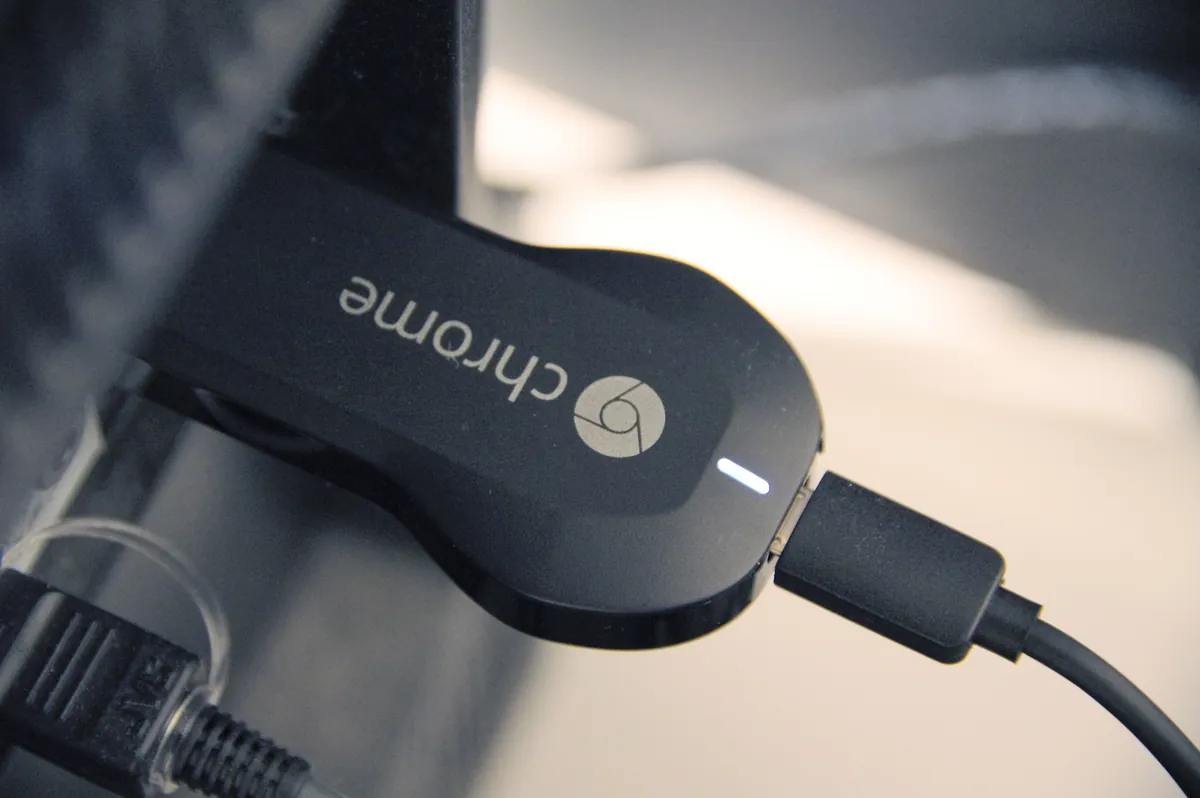
- A streaming stick adds casting to a TV that has none built in.
How to connect your phone to a TV wirelessly: the quick version
Learning how to connect your phone to a TV wirelessly starts with one check: both devices must sit on the same Wi-Fi network. That single rule causes most failed attempts. A phone on mobile data, or on a guest network, will not see the TV at all. Match the network names in the Wi-Fi settings on each device before you tap anything else.
Two different tricks hide behind the same idea, and picking the wrong one causes most confusion. Casting sends one video, song or photo to the TV, and the TV plays it while your phone acts as a remote. Mirroring copies everything on your phone screen to the TV, moment by moment, including messages that pop up. Cast when you want to watch one thing. Mirror when you want to show the screen itself.
Your phone and your TV decide the method together, so match them before you start. An iPhone talks to an Apple TV or an AirPlay-compatible smart TV through AirPlay. Most Android phones talk to a Chromecast, a Google TV or an Android TV through Google Cast. Galaxy phones talk to a Samsung TV through Smart View, which is Samsung's name for the same screen-mirroring idea. The table in the later section lines these up side by side.
| At a glance | Answer |
|---|---|
| First check | Same Wi-Fi network |
| iPhone method | AirPlay |
| Android method | Google Cast |
| Galaxy to Samsung | Smart View |
| No casting built in | Streaming stick |
| Mirror vs cast | Whole screen vs one video |
Cast from an iPhone with AirPlay
AirPlay is Apple's name for sending video, photos and sound from an iPhone to a TV without a cable. It works with an Apple TV box or a smart TV that lists AirPlay as a feature. Look for the AirPlay label in the TV's settings or on the maker's page for your model before you assume it is there. Older TVs without that label need a streaming box plugged into an HDMI port.
Streaming one video is the lighter option, and it leaves your phone free for other things. Find the video in the app that holds it, then tap the AirPlay button, which looks like a rectangle with a small triangle below it. In the Photos app, tap Share first, then tap the AirPlay button. Choose your TV from the list, and the video moves to the big screen while playback controls stay on your phone. To stop, tap the AirPlay button again and pick your iPhone from the list.
Mirroring shows the whole iPhone screen instead, which suits a photo album, a game or an app with no AirPlay button. Swipe down from the top right corner to open Control Center on an iPhone X or later. On an iPhone 8 or earlier, swipe up from the bottom edge instead. Tap Screen Mirroring, pick your TV, and type in the passcode if one appears on the TV screen. Stop it the same way: open Control Center, tap Screen Mirroring, then tap Stop Mirroring.
Cast from an Android phone with Google Cast
Google Cast is Google's name for the same idea on Android, and it comes built into Chromecast devices, Google TV sets and most Android TVs. Look for a small rectangle with a curved signal mark in the corner: that is the Cast button. It appears inside video, music and photo apps that support casting. Once you hand it over, the TV plays the video itself. Close the app or lock the screen and the video keeps playing.
Start from the app that holds the video, since casting from inside the app gives the smoothest result. Open YouTube, Netflix or a similar app, play the video you want, then tap the Cast button near the top of the screen. Pick your TV from the list of nearby devices, and wait for the Cast button to fill in, which means the link is live. Use the phone to pause, skip or change the volume, and tap the Cast button again, then Disconnect, when you finish.
The Google Home app handles the whole Android screen. Open Google Home, tap Devices at the bottom, then tap your TV under Local devices. Tap Cast my screen, then Cast screen on the prompt that follows, and tap Start now when Android asks for permission to share the screen. Everything on the phone appears on the TV until you return to the app and tap Stop mirroring. Some Android phones also put Cast or Screen Cast in Quick Settings, so check there before you open Google Home. The names of these buttons can shift when the app updates, so look for the same words if the layout looks different.
Mirror a Samsung Galaxy phone with Smart View
Smart View is the name Samsung gives screen mirroring on Galaxy phones and tablets. You find it in the Quick settings panel rather than as an app you download. That feature talks to Samsung TVs. Smart View is built into Galaxy phones and tablets running Samsung's One UI, and the exact labels vary by model and software version. Drag down from the top of the screen to open Quick settings, then drag down again if the panel opens only part way.
Casting a single video from a Galaxy phone works the same way as on any Android phone. Try the Cast button inside the app first. Smart View is the tool for the whole screen: a photo album, a game, a browser page or an app with no Cast button. On its first connection, the TV asks for permission, so keep the remote nearby and accept the prompt when it appears. The TV may show a PIN on its screen instead, and you type that number into the phone to finish the link. The SmartThings app offers a second route: add the TV to the app, then choose Smart View from the TV's page.
- Swipe down from the top right of the screen to open Quick settings.
- Select Smart View.
- Choose your TV from Available devices.
- Press Start now, then allow the connection on the TV.
- Enter the PIN if one appears on the TV screen.
- Finish by tapping the Smart View icon, then Disconnect.
Which way fits your TV
The TV in front of you decides the method more than the phone does, so check what the TV accepts before you pick a button. An AirPlay TV takes an iPhone with no extra hardware. Google Cast built into a TV takes an Android phone the same way. Roku and Fire TV sets also take video from phone apps through the Cast button, so try the same in-app button before you buy anything. No casting built in does not leave you stuck: a streaming stick in an HDMI port adds the missing receiver. Those sticks plug into a spare HDMI port and join the same Wi-Fi network as your phone.
Miracast is the older open standard behind some of this. It still matters for Windows laptops and a few TVs that list screen mirroring without naming AirPlay or Cast. Windows 10 or Windows 11 laptops can send their screens to a Miracast TV. Press the Windows key plus P, then pick Connect to a wireless display. Most phones sold today skip Miracast in favour of their maker's own casting, so treat it as a fallback rather than a first choice. When every wireless route fails, a USB-C to HDMI cable still works on phones that output video over USB-C, though not every phone does.
| Your phone | Your TV | Use this |
|---|---|---|
| iPhone | Apple TV or AirPlay TV | AirPlay |
| Android phone | Chromecast, Google TV or Android TV | Google Cast |
| Galaxy phone | Samsung TV | Smart View |
| Any phone | TV with no casting built in | Streaming stick in an HDMI port |
When the TV does not show up, and myths you can ignore
When a TV stays missing from the list, the cause is almost always a network problem, not a broken phone. Check that both devices use the same Wi-Fi network name, and a guest network often keeps devices apart on purpose. Restart the TV and the phone, then try again, since a fresh connection clears the stale link that blocks most attempts. Move closer to the router if the video stutters, because a weak signal shows up as lag before it shows up as a failed connection. Some TVs hide casting behind a setting with a name like Screen Mirroring or Cast, so switch that on in the TV's own menu first.
Popular beliefs waste more time than any real fault. One says any smart TV works with any phone. Each maker uses its own system, and a TV without AirPlay will not appear on an iPhone no matter how often you retry. Pick the method that matches your TV. Use the other phone in the house if yours will not link. Check the TV maker's support page for your exact model when the list stays empty.
- Old TV software: update the TV, since casting support arrives in software updates on some models.
- VPN on the phone: switch it off while casting, since it can hide the phone from the TV.
Quick answers
Can I connect my phone to a TV wirelessly without Wi-Fi?
Casting needs Wi-Fi in most cases, because the phone and TV talk through the home network. A TV with Miracast or Wi-Fi Direct can mirror a phone screen without a router. A phone with DisplayPort Alt Mode over USB-C can use a cable instead. Not every phone outputs video over USB-C, so check your model first.
Why does my TV not appear in the list?
Restart the TV and the phone, then try again. Check the TV has casting switched on in its settings, and move closer to the router if the signal is weak.
Does casting use my mobile data?
No, once the video plays on the TV, the TV pulls it over Wi-Fi, not through the phone's mobile plan. Your phone only sends the instruction and stays as the remote. Keep the phone on Wi-Fi during casting so the link does not drop.
Can I cast Netflix or YouTube from my phone?
Yes, both apps carry a Cast button, and many other video apps do too. Start the video, tap the Cast button, and pick your TV.