How to Connect AirPods to Android, Step by Step
Learn how to connect AirPods to Android in Bluetooth settings, put the case in pairing mode, check the battery, and fix pairing that fails.
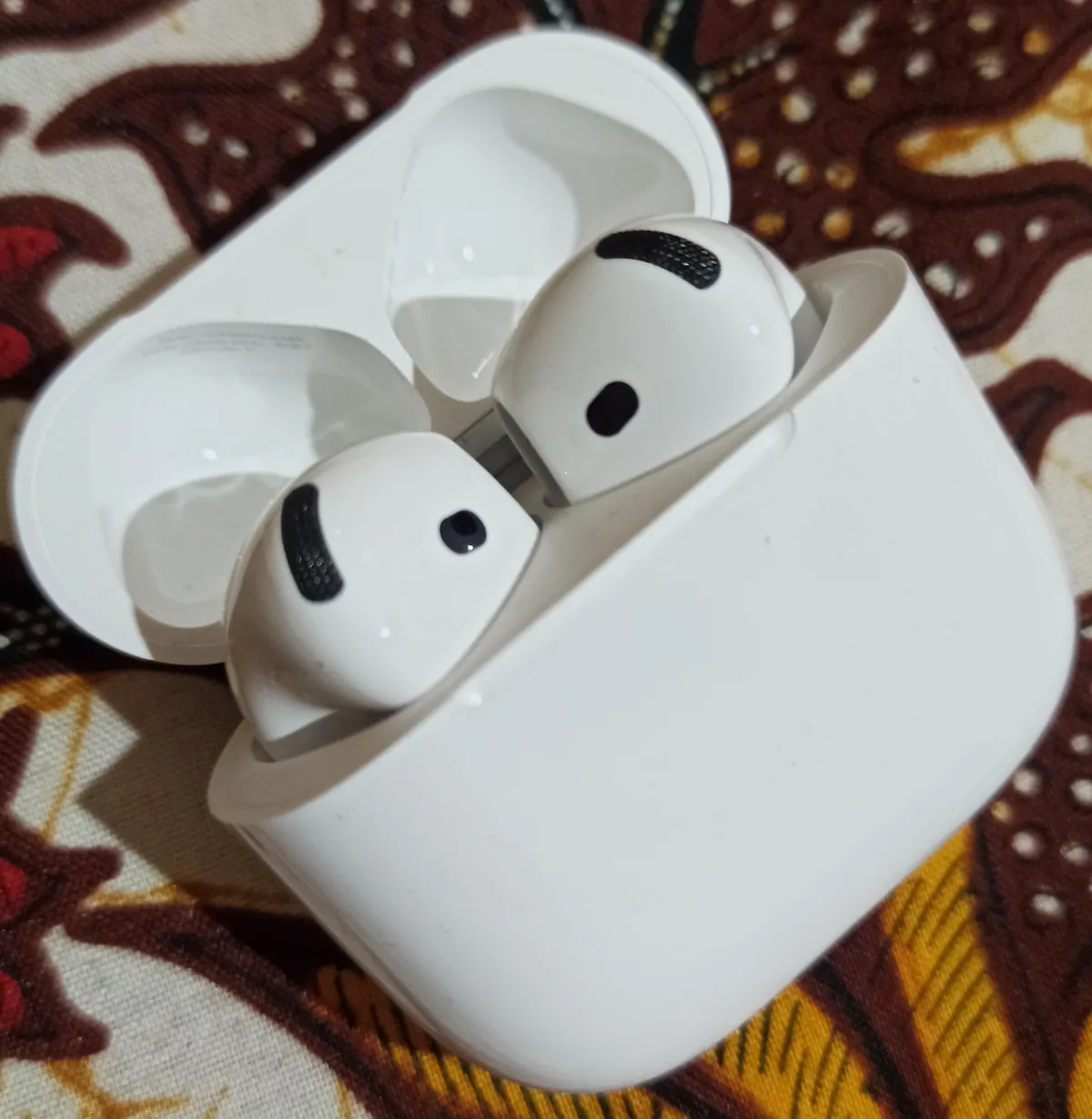
- Flashing white on the case means pairing mode is on and the phone can find the AirPods.
- Newer cases use a double-tap on the front. Older cases use the setup button on the back.
- The case light is your battery check on Android: green is full, amber is low.
- Firmware updates and Find My need an Apple device, so plan around that limit.
How to connect AirPods to Android in Bluetooth settings
Bluetooth is the short-range wireless link your phone uses for earbuds, watches and car audio. Pairing means the phone and the earbuds learn each other once, then reconnect on their own. AirPods pair with Android phones through that same Bluetooth list, the way any wireless earbuds do. No extra app is needed for the connection itself. This guide covers AirPods 1 to 4 and AirPods Pro 1 and 2.
Menu names differ by maker, so the path on your phone may not match a friend's phone. Google's Android help uses Connected devices, while Samsung menus put Bluetooth under Settings, then Connections. Both paths land on the same Bluetooth screen. Look for the Bluetooth list, not the exact words.
Charge comes before pairing. Put both AirPods in the case and plug the case in if the light stays dark. A flat case cannot enter pairing mode, and the phone will never list it. A short charge now saves a long hunt through settings later.
Keep the case next to the phone while you pair. Stay on the Bluetooth screen until the name appears in the list. Tapping around too early, before pairing mode starts, is the usual reason nothing shows up. Patience here beats speed.
- Open Settings on your Android phone and turn Bluetooth on.
- Tap Connected devices, then Pair new device. On some phones, tap Connections, then Bluetooth instead.
- Put both AirPods in the charging case and open the lid.
- Start pairing mode: hold the setup button on the back, or double-tap the front on newer cases, until the status light flashes white.
- Tap your AirPods in the list of Bluetooth devices.
- Follow the on-screen prompts until the phone shows the AirPods as connected.
| At a glance | Answer |
|---|---|
| Pairing signal | Status light flashes white |
| Older cases | Hold setup button on back |
| Newer cases | Double-tap front of case |
| Siri on Android | Not available |
| Battery check | Case light: green or amber |
The case action that starts pairing mode
Pairing mode is the state where the AirPods announce themselves to nearby phones. Watch for one sign: the status light on the case flashes white. Without that flashing light, your phone has nothing to find. Every failed attempt usually traces back to this one signal.
Which action you use depends on the case in your hand. Two groups cover every model, and using the wrong action does nothing at all. Most failed attempts start with that split. Check your case before you blame the phone.
Older cases carry a small round setup button on the back, sitting flush with the case. Press and hold it with the lid open until the light flashes white. Release the button once the flashing starts. Your phone should list the AirPods within moments.
Newer cases have no button on the back at all. Double-tap the front of the case instead, with the lid open and both AirPods inside. Keep tapping until the light starts flashing, then stop. Your tap lands on the case body, not on a button.
AirPods Max are out of scope for this guide. Everything here covers the earbuds and their charging cases. Pairing still ends the same way: pick the name on the phone.
| Your AirPods | Pairing action | Ready sign |
|---|---|---|
| AirPods 1, 2 or 3; AirPods Pro 1 or 2 | Press and hold the setup button on the back | Status light flashes white |
| AirPods 4 | Double-tap the front of the case | Status light flashes white |
What works on Android and what needs an Apple device
On a non-Apple device, AirPods act as a Bluetooth headset for listening and talking. Music, videos and calls play through the earbuds like any other Bluetooth pair. Limits sit around Apple-only services, not around basic sound. Sound itself is not the problem.
Siri is the clearest limit. Siri does not work with a non-Apple device, even though listening and talking still work. Your Android phone keeps its own voice assistant, reached from the phone itself. Earbuds carry the sound either way.
Automatic switching is documented between Apple devices signed in with the same Apple Account. AirPods can move from a Mac to an iPhone call on their own inside that setup. Android phones sit outside that system, so you pick the connection yourself. One tap in Bluetooth settings does the job.
Firmware is the built-in software inside the AirPods, and updates arrive through an iPhone, iPad or Mac. Updates install while the AirPods charge in Bluetooth range of one of those devices on Wi-Fi. Without an Apple device nearby, Apple points you to an Apple Store or an authorised service provider for the update.
Find My is Apple's lost-device service, tied to your Apple Account. AirPods join it through Apple devices, so an Android-only setup has no Find My tracking. Keep the case somewhere safe instead. A small case is easy to lose and hard to trace without that service.
| Feature | On Android | Needs |
|---|---|---|
| Listening and calls | Works over Bluetooth | Nothing extra |
| Siri | Does not work | Apple device |
| Automatic switching | Pick the device yourself | Apple devices, same account |
| Firmware updates | Not from the phone | iPhone, iPad or Mac |
| Find My tracking | Not available | Apple Account setup |
How to check the battery without an iPhone
The case light is the battery check that works with any phone. Two colours carry the message: green means fully charged, and amber means less than one full charge remains. No app and no Apple device are needed for that reading. Open the lid and look.
What the light describes depends on where the earbuds are. With both AirPods in the case and the lid open, the light shows the charge of the AirPods. Take the earbuds out, and the same light shows the charge of the case. Same light, two readings.
No light at all is also a message. You may need to charge the AirPods before you can use them again. Plug the case in, wait for the light, then try pairing or listening again. A dark case explains many silent failures.
Exact percentages are documented on iPhone, iPad and Mac. Bluetooth settings on those devices show the battery percentage, and iPhone and iPad add a widget. On Android, plan around the case light rather than a percentage. Green means go, amber means charge soon.
Glance before you leave and the habit covers most days. Open the lid, check the colour, then close it again. Amber before a long call or a trip means plug in first. Two seconds now beats a dead earbud later.
Disconnect, forget, and reconnect on Android
One pairing usually lasts. Google's Android help says your devices stay paired until you unpair them, so one successful pairing is usually enough. After that, the phone and the AirPods can connect again without the full setup. Google also notes paired devices can connect automatically after the first pairing.
Reconnecting a paired pair starts on the Bluetooth screen. Turn Bluetooth on, then pick the AirPods from Saved devices, where a connected pair shows as Connected. That is the path Google describes for accessories paired earlier. Saved devices keep the pairing ready for the next listen.
Disconnecting for now and forgetting for good are different choices. Disconnect ends today's connection and keeps the pairing for later. Forget, sometimes labelled Unpair, removes the pairing so the next connection starts from zero. Pick Forget only when you mean it.
Labels vary by maker and Android version, so your wording may differ slightly. Google's steps run through the Bluetooth screen, opened by touching and holding the Bluetooth tile. From there you manage the saved device, including disconnecting it. Every phone follows the same idea. The pairing stays saved until you remove it yourself.
- Swipe down from the top of the screen.
- Touch and hold the Bluetooth tile to open Bluetooth settings.
- Tap your AirPods under Saved devices to reconnect, or open its settings to disconnect.
- Choose Forget or Unpair only when you want to remove the pairing completely.
Common mistakes and fixes when pairing fails
A common belief says AirPods only work with iPhones. That is wrong. Pairing runs over Bluetooth, so an Android phone can connect to them like any wireless earbuds. What you give up is Apple Account features, covered in the section above.
Another mistake is opening the lid and waiting. On Android, an open lid alone does not start pairing mode. Pairing mode must start first, with the ready signal showing, before the phone can list the AirPods. Waiting beside an open case changes nothing.
Start fixes with the basics Google lists for Bluetooth problems. Turn Bluetooth off and on again, restart the phone, and confirm the AirPods are in pairing mode. Refresh the device list and try the name again. Simple steps clear most stalls.
Still stuck? Put both AirPods back in the case, close the lid, and wait about 15 seconds before opening it again. Apple's won't-connect steps list that same pause. Then start pairing mode once more.
Resetting is the last step, not the first. Holding the setup button for about 15 seconds brings a light that flashes amber, then white. Pair again from the Bluetooth screen after the light turns white.
Nearby phones deserve a check too. If the AirPods were paired to another phone nearby, that phone can grab the connection first. Turn Bluetooth off on the other phone, or forget the AirPods there, then pair with yours. Two phones hunting at once helps nobody.
- Case near phone: keep them side by side while pairing.
- Flashing white: pairing mode is on and ready.
- Right screen: Bluetooth list open on the phone.
- Other phones: Bluetooth off nearby while you pair.
Quick answers
Do AirPods work with Samsung phones?
Yes. Samsung phones run Android, and AirPods connect as a Bluetooth headset for listening and talking. Samsung menus put Bluetooth under Settings, then Connections. Firmware updates still need an Apple device.
Can AirPods stay connected to two Android phones at once?
Plan on one active connection at a time. You can pair with more than one phone, then connect to the one you want to use. Automatic switching between devices is documented for Apple devices signed in with the same Apple Account.
How do I know pairing mode is on?
Watch the status light on the case. A flashing white light means the AirPods are ready to pair and your phone can find them. A steady light or no light means pairing mode is not active yet.
Do I need an app to use AirPods with Android?
No. Pairing happens in the phone's Bluetooth settings, and no extra app appears in Apple or Google's steps. Battery percentages and firmware updates are the parts tied to Apple devices, not basic listening.